Activate Fault Code Diagnostics on iDrive
Install fault code diagnostics on your NBT EVO head unit yourself: connect the laptop to the car, enter your code in the Wayglass Installer and let it run. Then read your fault codes straight from the iDrive menu. Allow about 5 minutes.
Before you start
- Your Fault Code Diagnostics activation code (WG-XXXXX-XXXXX)
- A BMW with an NBT EVO head unit on a supported software version
- An ENET cable
- A Windows laptop with an internet connection
- The Wayglass Installer
-
Download the installer
Download the Wayglass Installer and install it on your Windows laptop.
Download Wayglass Installer -
Connect the ENET cable
Plug the ENET cable into the car’s OBD port and into your laptop. If your laptop has no Ethernet port, use a USB-to-Ethernet adapter.
-
Connect the laptop to the internet
Use Wi-Fi or a mobile hotspot. The ENET cable stays plugged in at the same time.
-
Turn the ignition on
Put the ignition on or start the engine, and keep it on for the whole procedure.
-
Open the installer and enter your code
Open the Wayglass Installer, click Enter the code and type or paste your activation code (WG-XXXXX-XXXXX). Before you continue, check that everything is green.
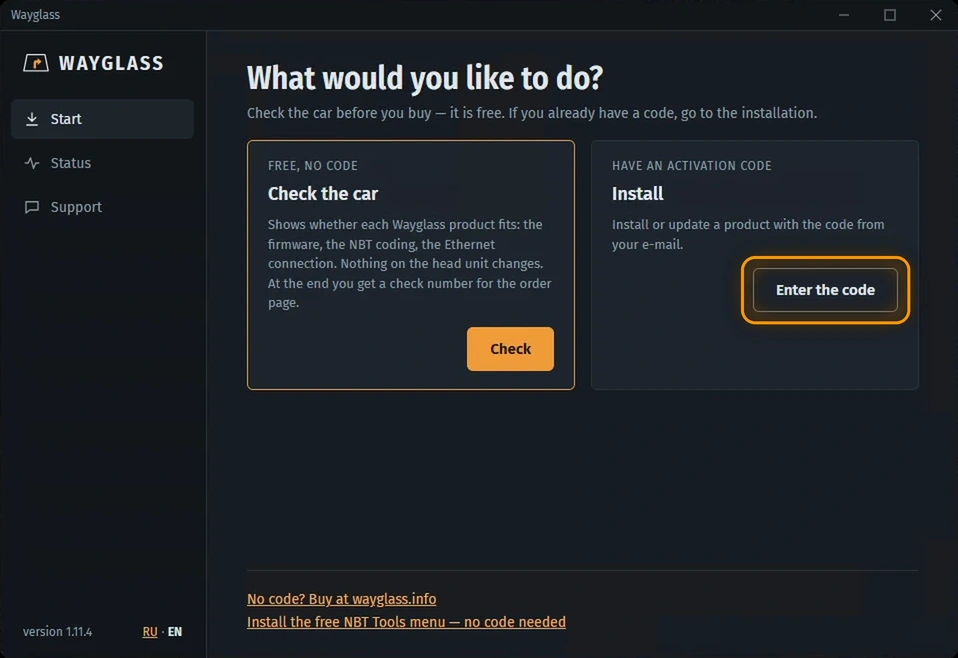
5.1Wayglass: on the start screen, click Enter the code 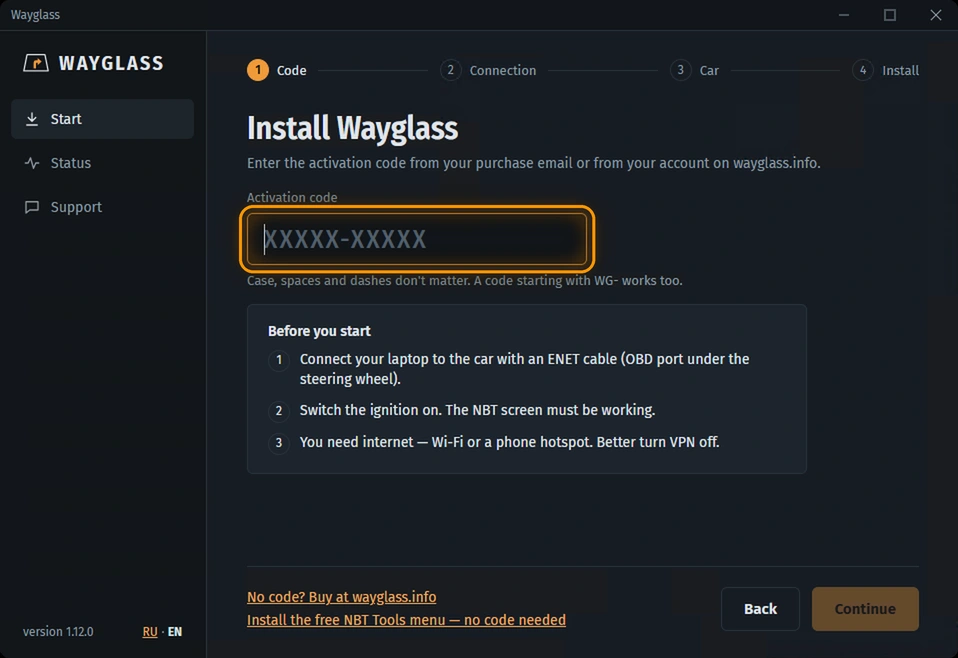
5.2Wayglass: type or paste your activation code, then click Continue -
Install
Click Install, then sit back. The installer reads your unit’s software version first and changes nothing if it isn’t compatible. Don’t turn off the ignition or unplug the cable until it’s finished.
-
Read your fault codes
Open Diagnostics in the iDrive menu and start the read. You can cancel it at any time. Nothing runs in the background and nothing is changed in the car.
-
Review the results
You see which control units responded and how many faults each one has. Open any fault to see its code, its status and a plain-language description.
- Present now: the fault is active at the moment
- Stored, not currently present: it happened before but isn’t active now
- Control units with no faults are shown separately from units that did not answer
Frequently asked questions
My software version is not supported
Nothing was changed on the unit. Send us your VIN and we’ll check it for you, as new versions are added.
The installation was interrupted
Run the installer again: it finishes the installation or restores the original state.
Can it clear my faults?
No. It is read-only and never clears faults or changes anything in the car. Clearing faults and repairs are left to your workshop.
Do I need internet in the car?
No. The descriptions are stored on the head unit, so you need no internet or phone to read the codes.