Finds your car
Detects the ENET link and reads the VIN from the car, on F, G and newer DoIP models.
Sign in or create an account to access orders, downloads and wallet.
 FlashXCode
Explore our automotive software services for BMW, MINI, Rolls-Royce and Toyota Supra.
Browse the catalogFree tool · Windows
Plug the ENET cable into your car and your PC, then press Start. The Forwarder sends the car’s connection to our technician’s laptop, so we can code it remotely as if we were sitting next to it.
How it works
Ignition on. Plug the ENET cable into the car’s OBD port and into your Windows PC.
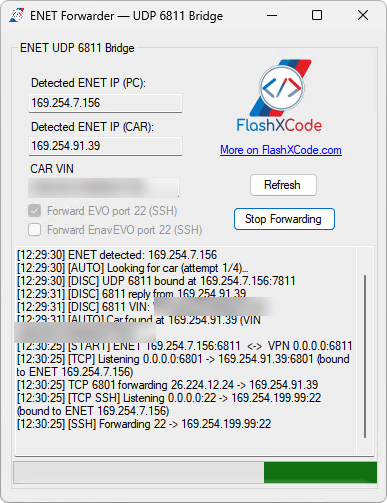
Open FlashXCode_ENET_Forwarder.exe. It finds the car and shows its VIN by itself.
Your car is now reachable from our laptop over the remote connection we set up with you. Leave the PC on until we finish.
The connection
The ENET cable connects the car to your PC. The Forwarder passes that connection on to our technician, so we work on the car as if we were next to it.
What it does
Detects the ENET link and reads the VIN from the car, on F, G and newer DoIP models.
Passes the BMW diagnostic connection (ports 6801 and 6811) from the car to our remote laptop.
Tick “Forward EVO port 22” or “Forward EnavEVO port 22” and we can reach NBT EVO and EntryNav2 units directly.
Unplug the cable or restart the car and it finds the car again when the link comes back.
Nothing runs in the background. Press Stop Forwarding or close the window and the connection ends.
Every step is shown in the window, so you can see exactly what’s happening.
Requirements
Keep the car on a battery charger during coding, and keep the PC from going to sleep.
FAQ
Check that the cable is plugged in at both ends and the ignition is on, then click Refresh. On some PCs you have to enable the Ethernet adapter first.
The tool is new and not yet known to Windows SmartScreen. Click “More info”, then “Run anyway”.
Only when we ask you to. We use it for NBT EVO and EntryNav2 head units.
The Forwarder switches to port 5022 by itself. Nothing for you to change.
It only forwards traffic while the window is open and you’ve pressed Start. Close it and the connection ends.
Download the Forwarder, then message us to book a time.