
Update maps via USB on NBTevo and EnavEVO
Install the latest navigation maps from a USB stick, using the maps and the FSC file you received from us.
Before you start
- A USB stick
- The EVO or EnavEVO maps you received
- Your FSC file, from Feature Installer or from the zip you received
-
Find your FSC file
After you run Feature Installer, an FSC file named FSC_VIN_MAPREGION is on your desktop, for example FSC_G653783_012000FF. It is also in the zip file you received.
-
Put the maps on the USB stick
Download the EVO or EnavEVO maps and unzip them onto the root of the USB stick. It should look like this:
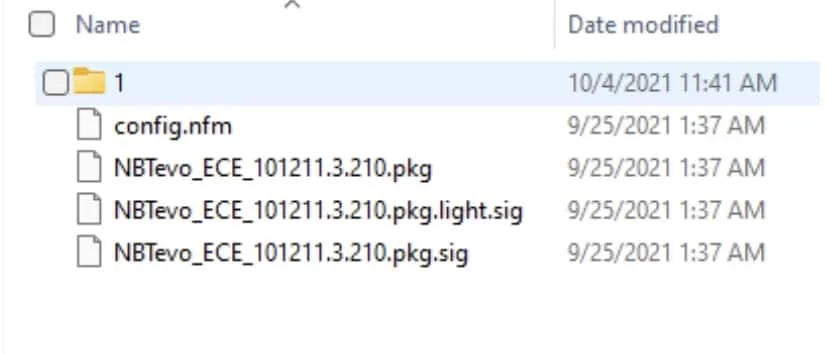
The maps unzipped on the root of the USB stick -
Create an FSC folder
Create a folder called FSC on the root of the USB stick.
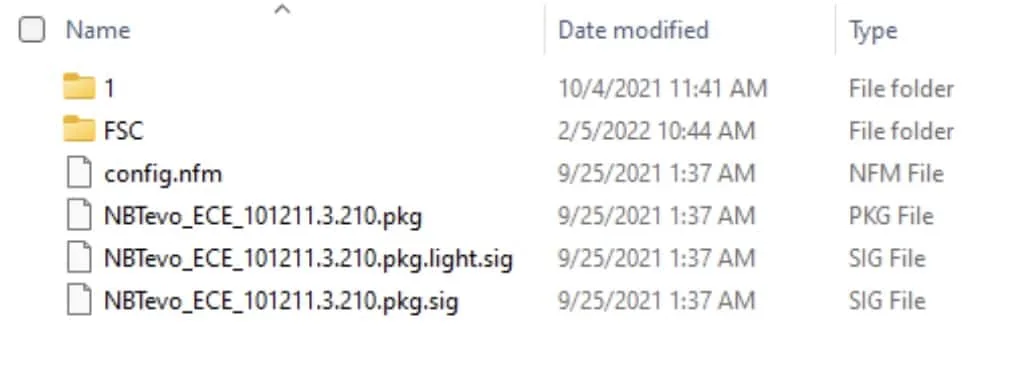
The FSC folder next to the map files -
Copy the FSC file into it
Copy the FSC file from your desktop, or from the zip you received, into the FSC folder.
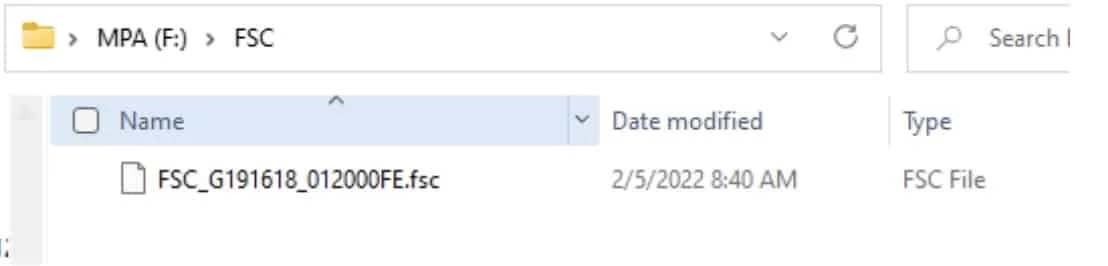
The FSC file inside the FSC folder -
Plug the USB stick into the car
The car finds the newer map version on the stick. Select Start update. You can leave the update screen while it runs; open the map options to see the progress again.
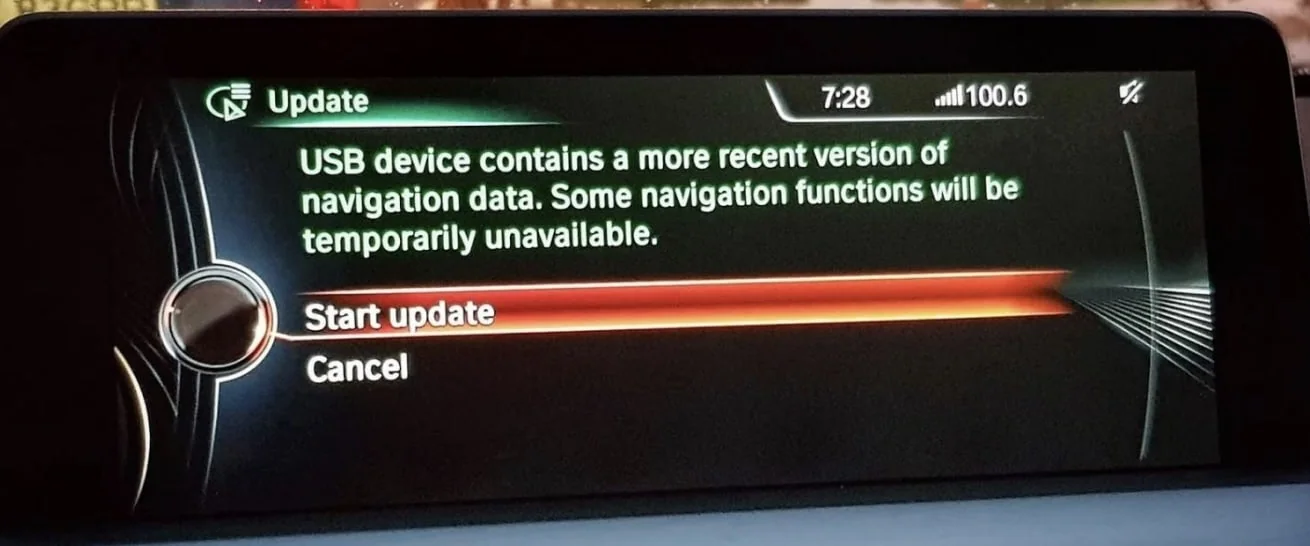
5.1Select Start update 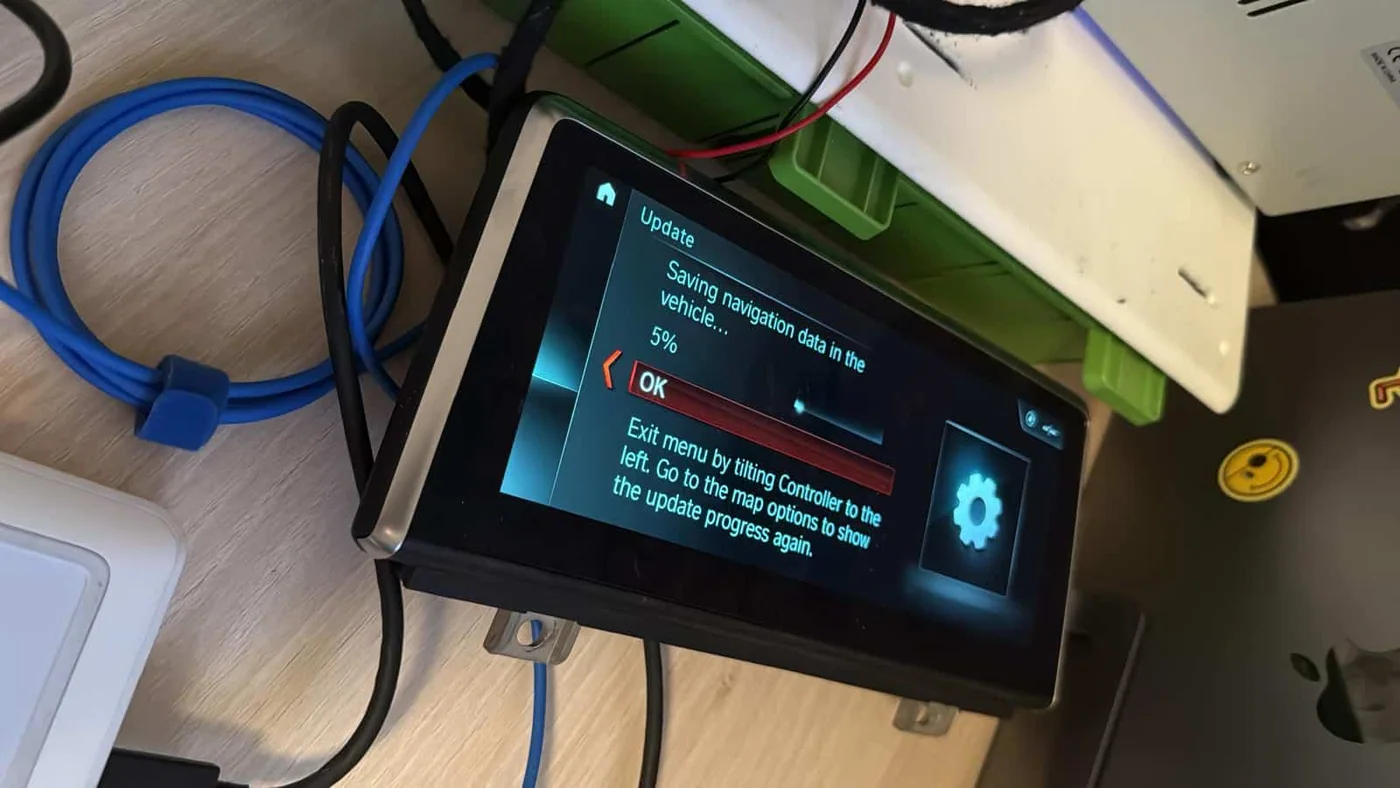
5.2The update saving navigation data in the vehicle