
How to connect your iPhone to CarPlay
Everything you need to get Apple CarPlay running after activation: the Wi-Fi antenna, Siri, and pairing your iPhone with the head unit.
Before you start
- The Wi-Fi antenna plugged into the head unit
- Siri turned on on your iPhone
- About 5 minutes, parked with the ignition on
-
Plug in the Wi-Fi antenna
CarPlay connects over Wi-Fi, so the Wi-Fi antenna must be plugged into the back of your head unit. Either the OEM antenna or an aftermarket one works.
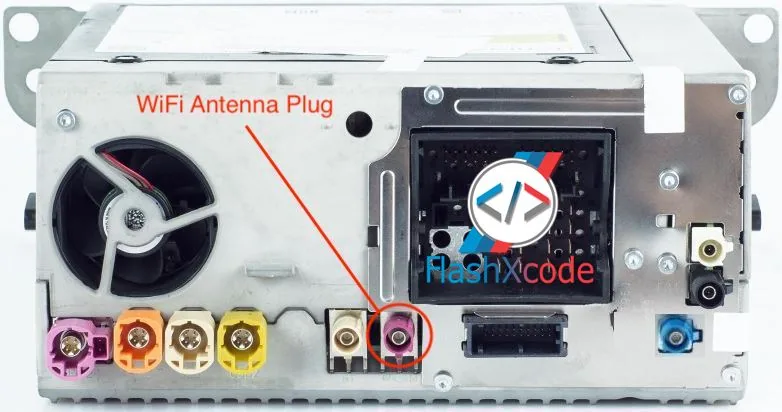
1.1NBTevo unit: Wi-Fi antenna plug 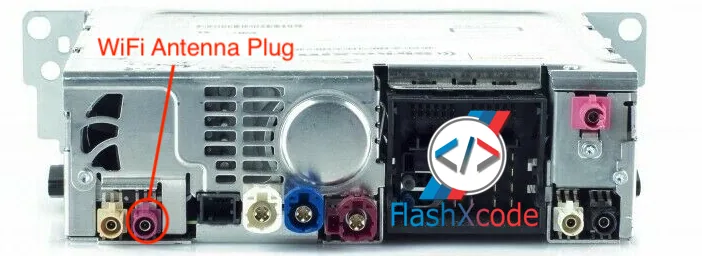
1.2EntryNav2 unit: Wi-Fi antenna plug 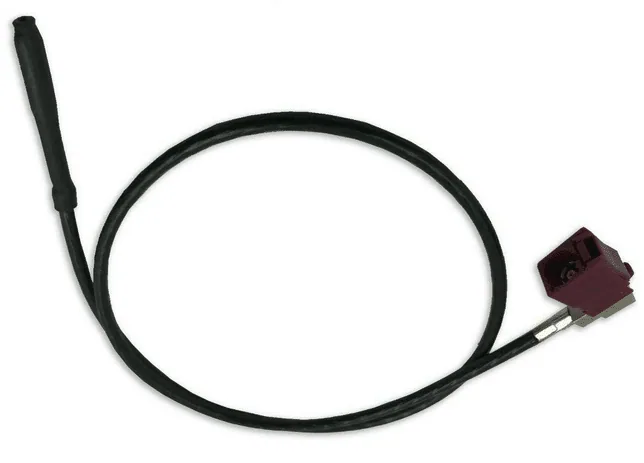
1.3OEM antenna 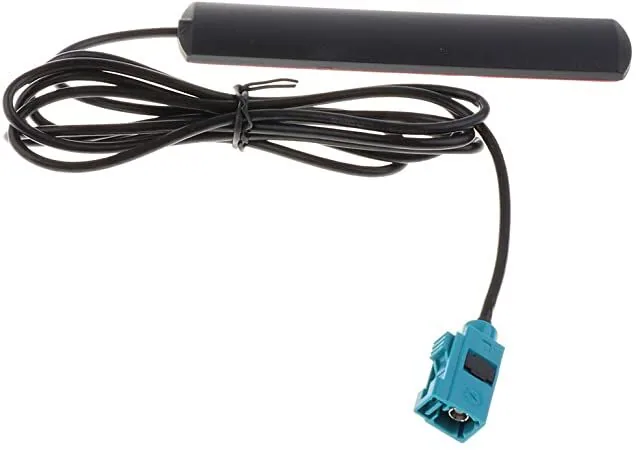
1.4Aftermarket antenna -
Turn on Siri on your iPhone
CarPlay needs Siri. On your iPhone, follow these screens:
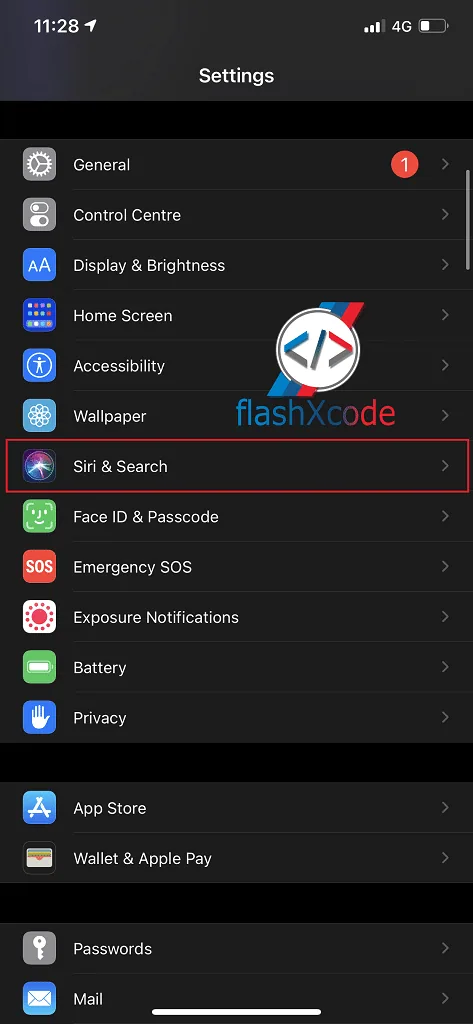
2.1Go to Settings › Siri & Search 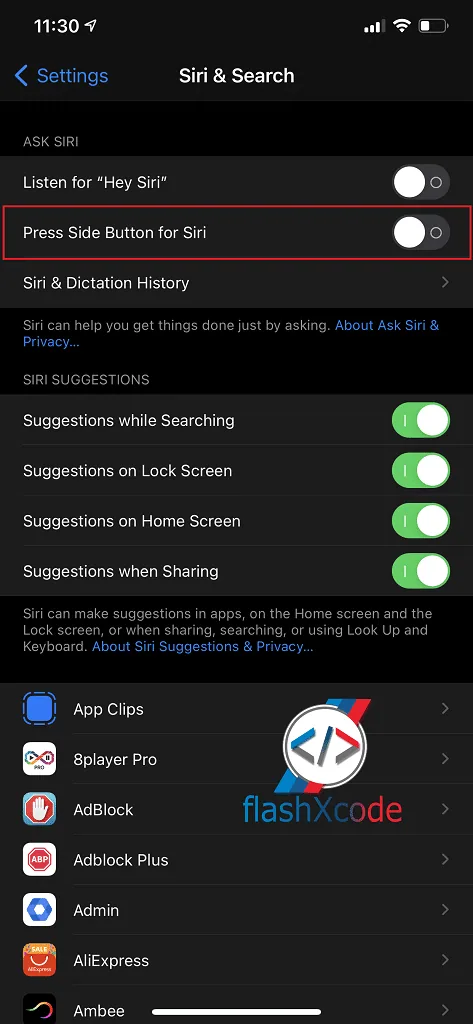
2.2Turn on Press Side Button for Siri 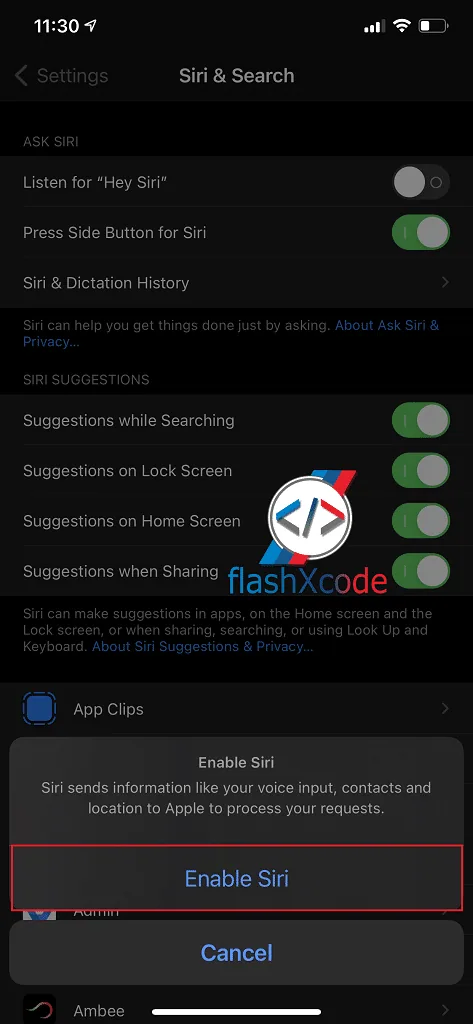
2.3Tap Enable Siri 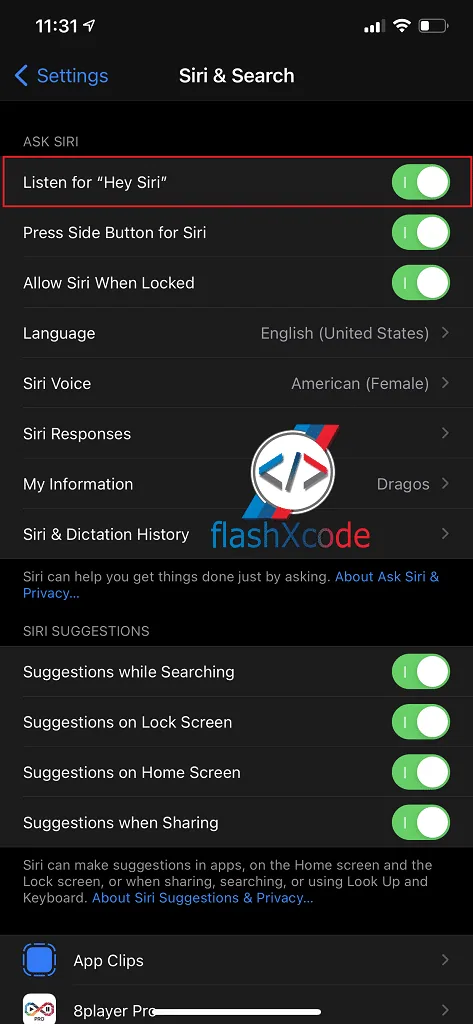
2.4Turn on Listen for “Hey Siri” 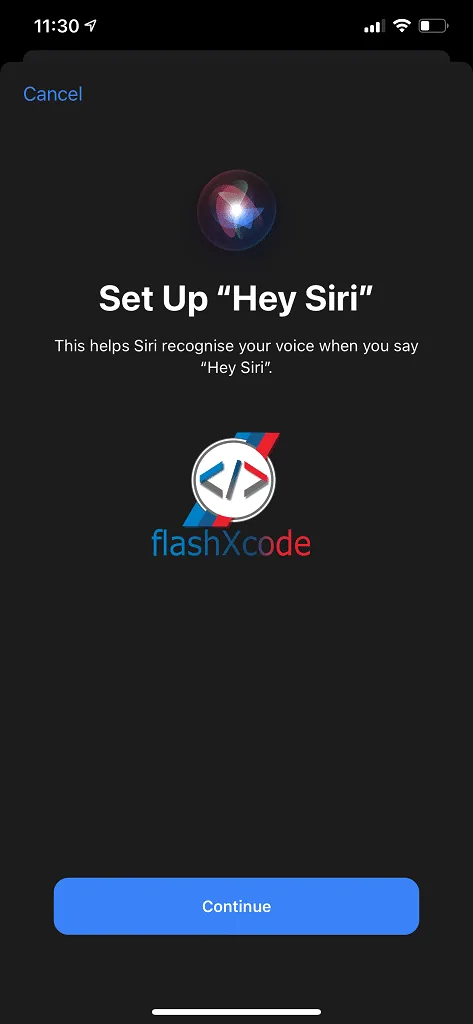
2.5Tap Continue 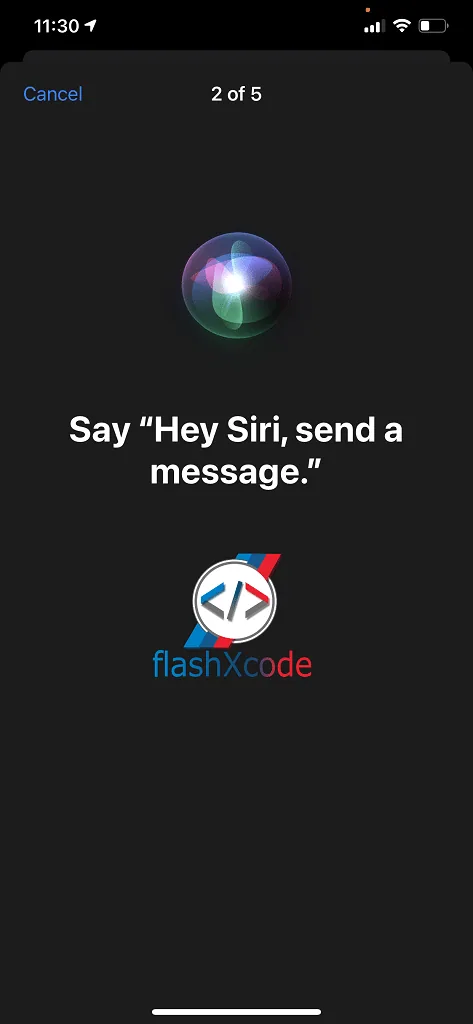
2.6Say “Hey Siri, send a message.” 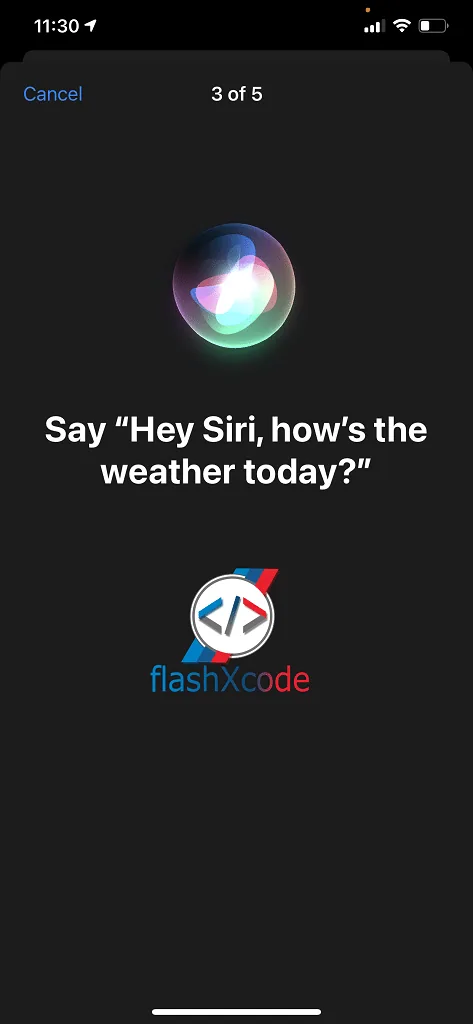
2.7Say “Hey Siri, how’s the weather today?” 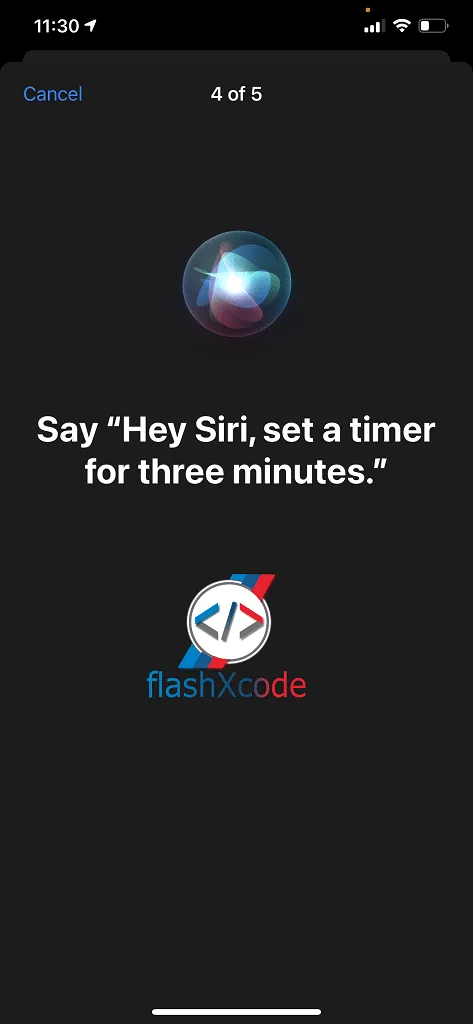
2.8Say “Hey Siri, set a timer for three minutes.” 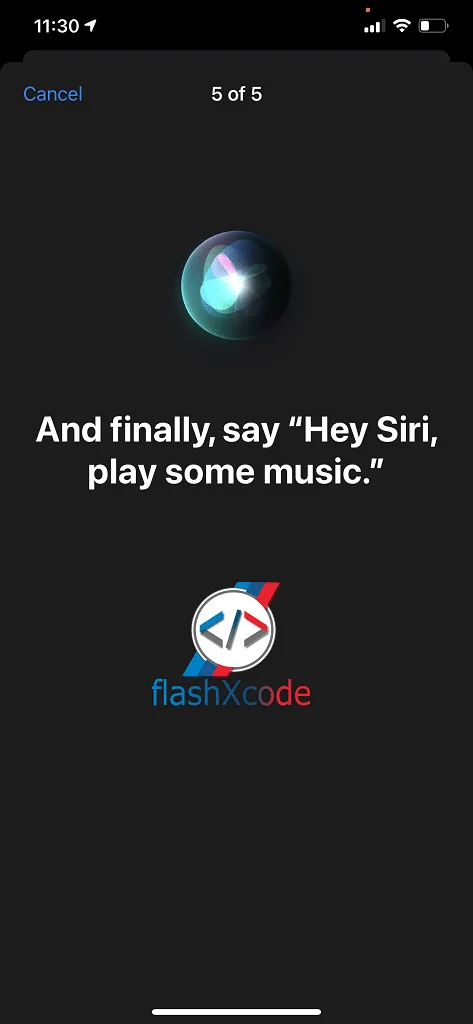
2.9Say “Hey Siri, play some music.” -
Add the iPhone on the head unit
First delete all phones from the head unit and from the iPhone’s Bluetooth list. Then, on the car display:
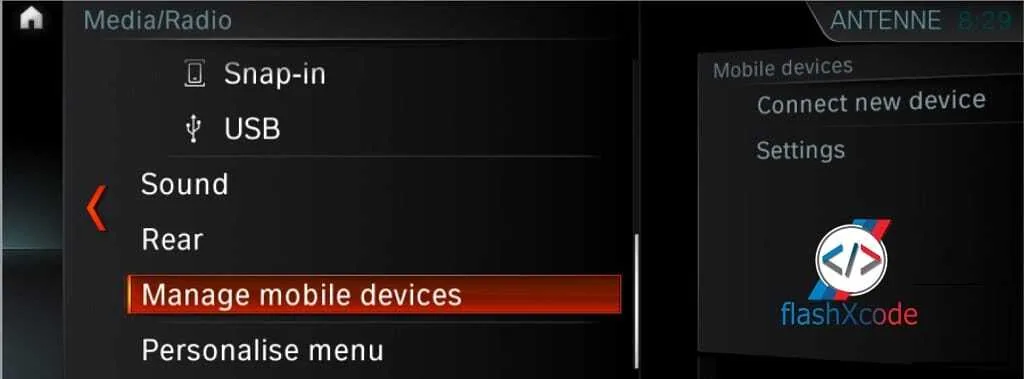
3.1Go to Communication › Manage mobile devices 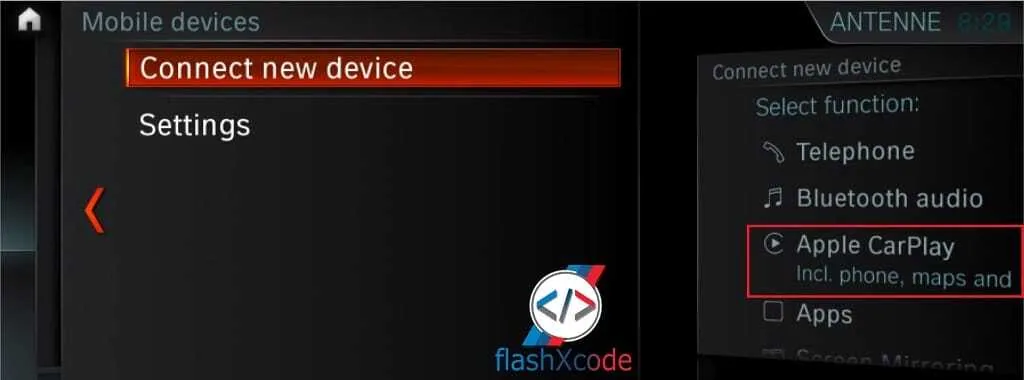
3.2Select Connect new device 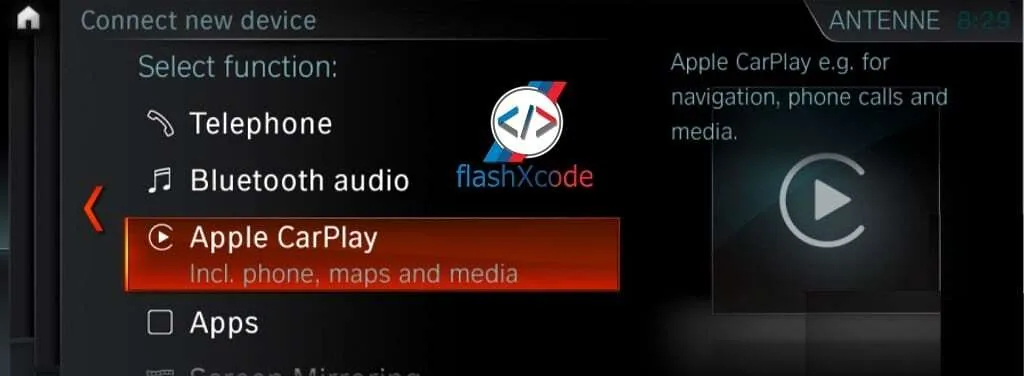
3.3Select Apple CarPlay 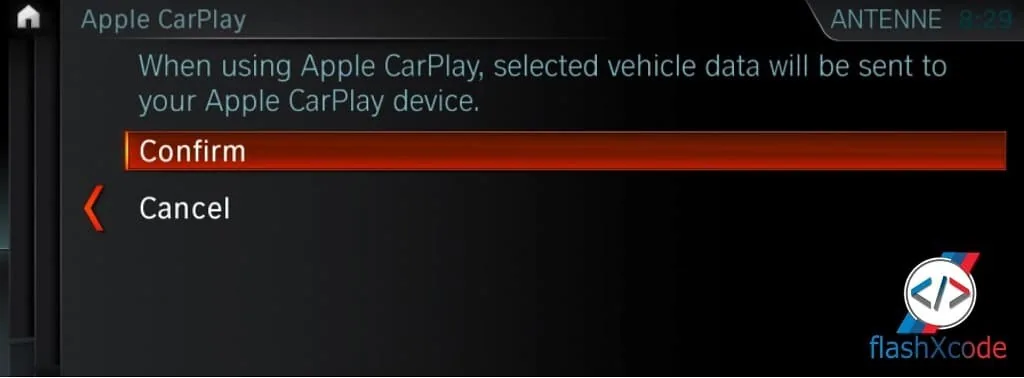
3.4Select Confirm 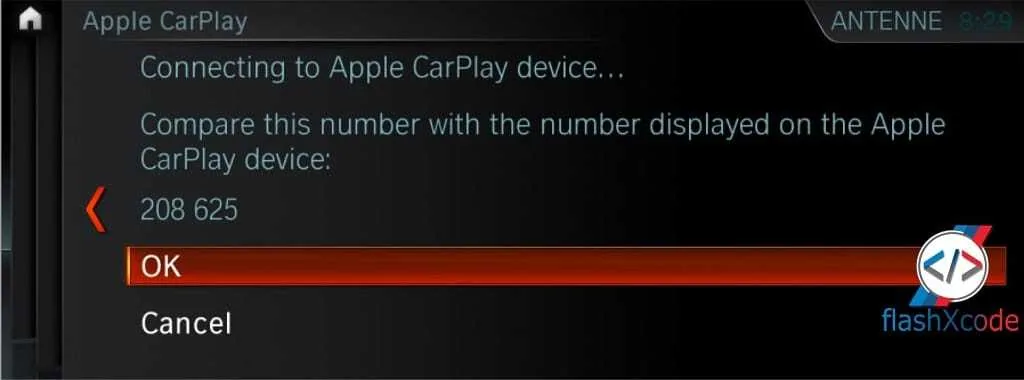
3.5Check the number and select OK -
Forget the car in your iPhone’s Bluetooth
If your car is still listed in the iPhone’s Bluetooth settings, remove it first.
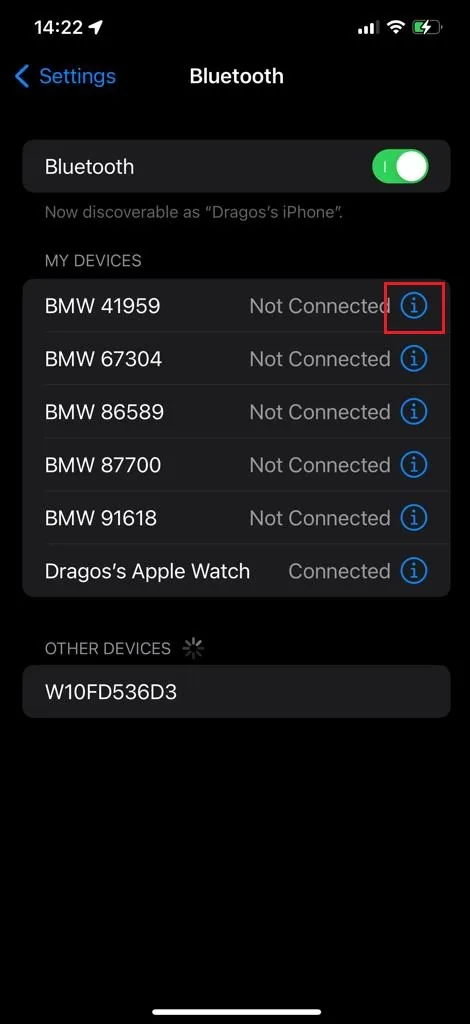
4.1Tap the ⓘ next to your car 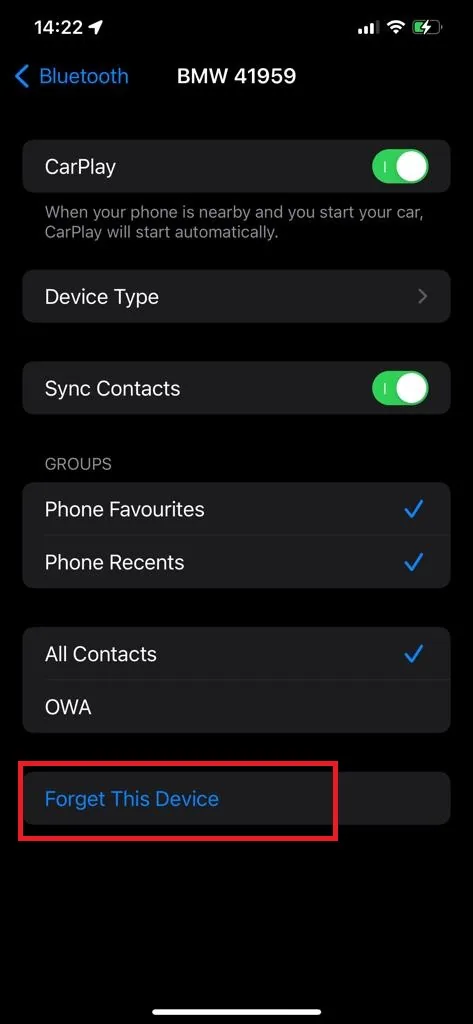
4.2Tap Forget This Device -
Connect CarPlay on your iPhone
Now finish the pairing on the iPhone:
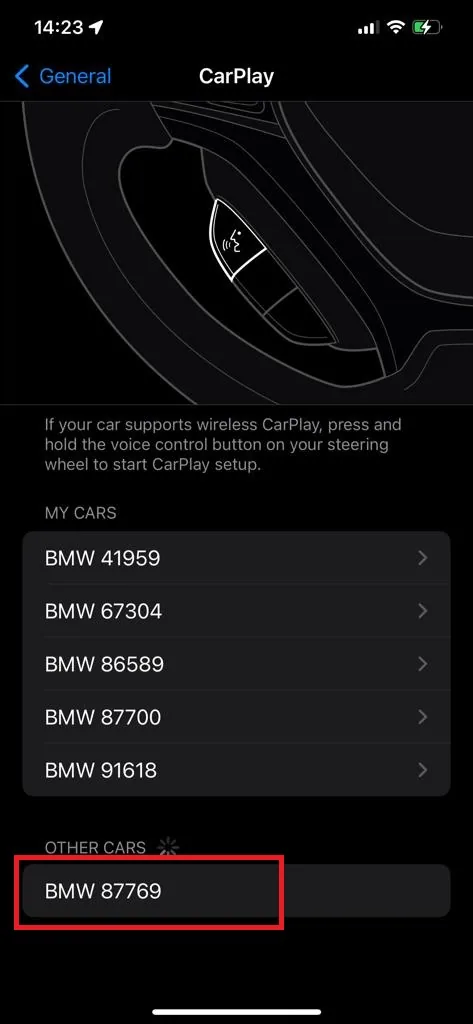
5.1Go to Settings › General › CarPlay and pick your car 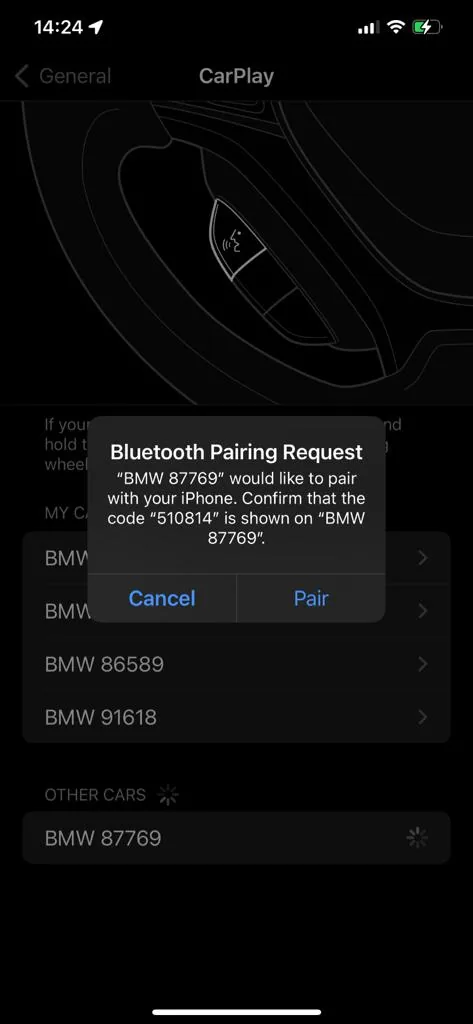
5.2Tap Pair 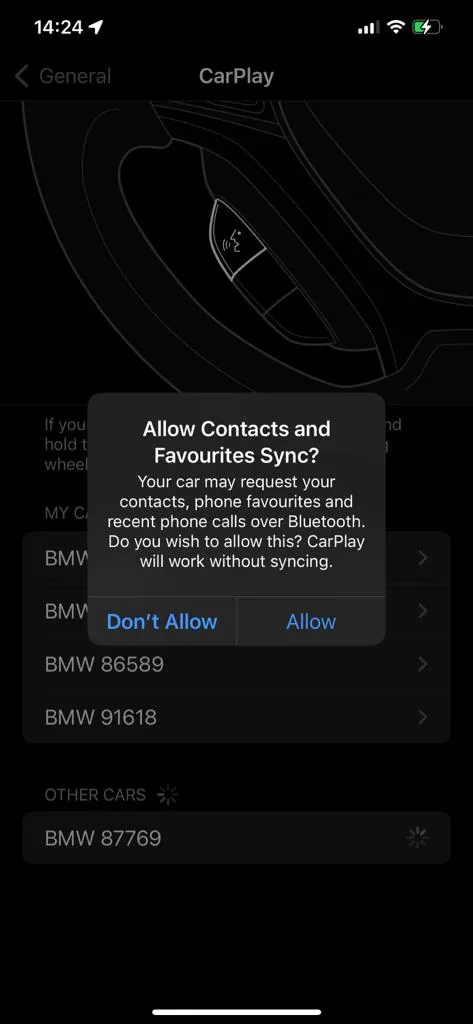
5.3Tap Allow 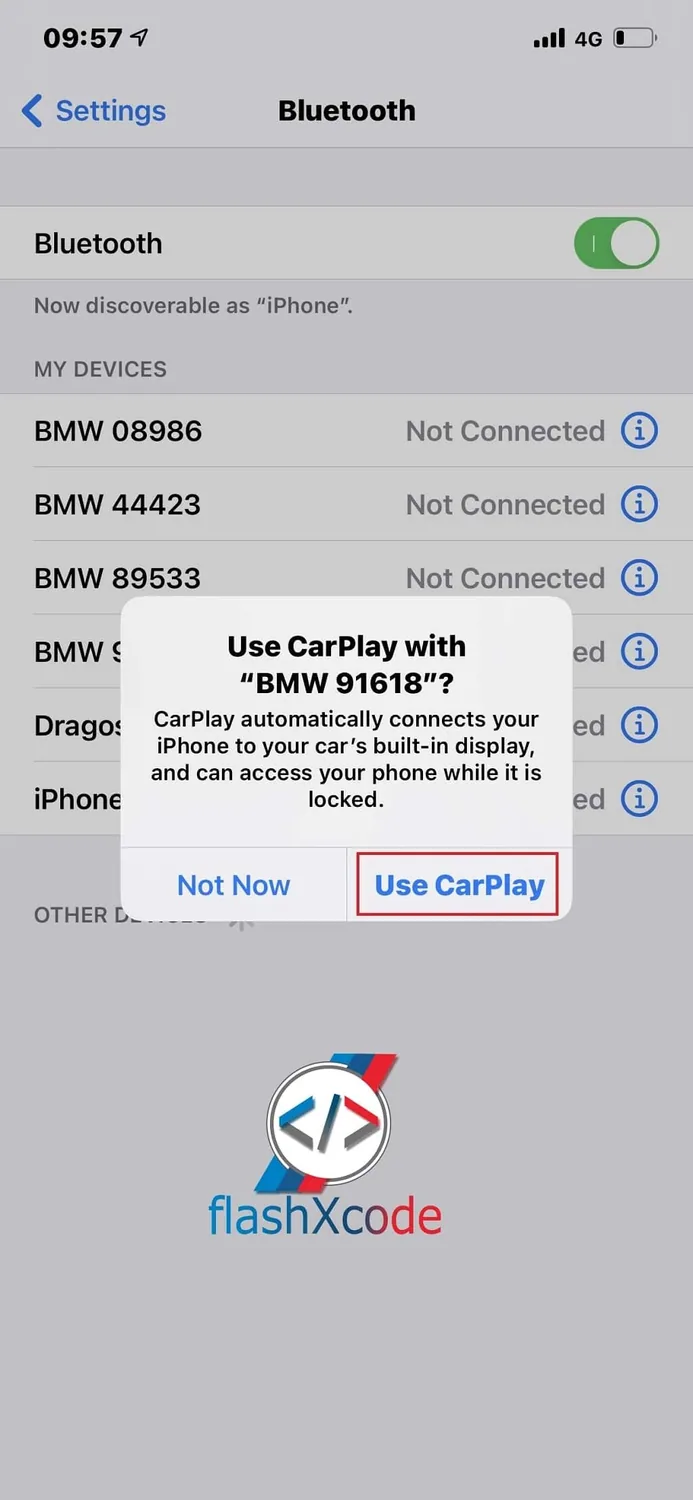
5.4Tap Use CarPlay, then wait 10–15 seconds -
You’re connected
Within 20 seconds the Apple CarPlay home screen appears. Next time you get in, CarPlay connects by itself.
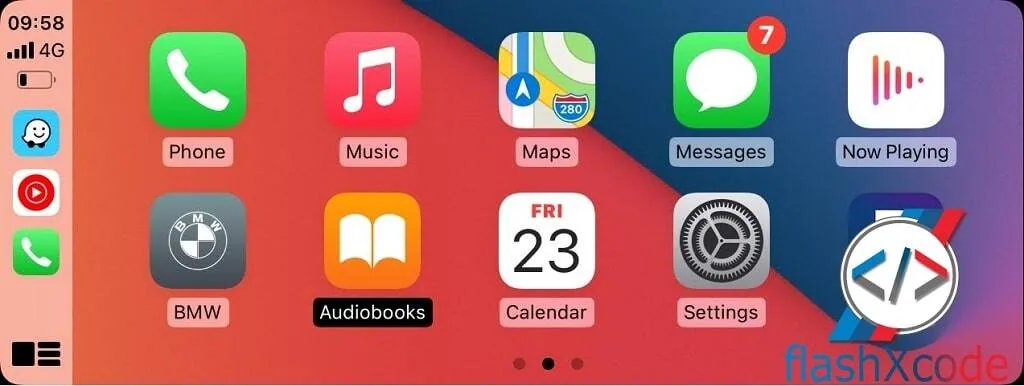
6.1The CarPlay home screen 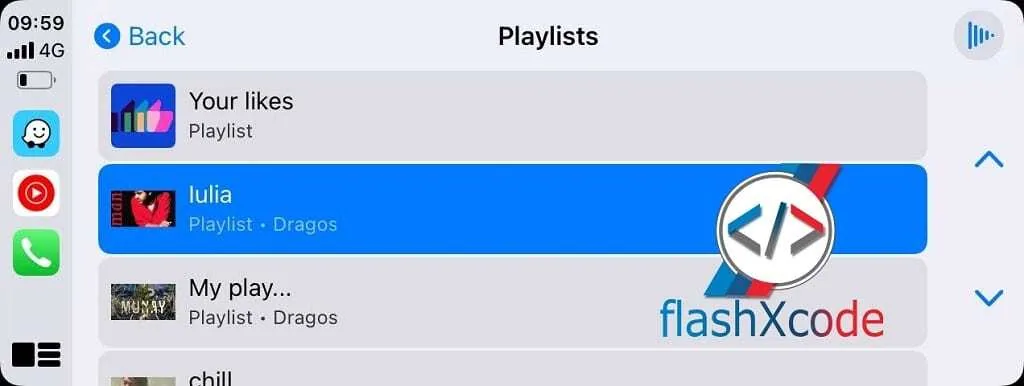
6.2Music and playlists 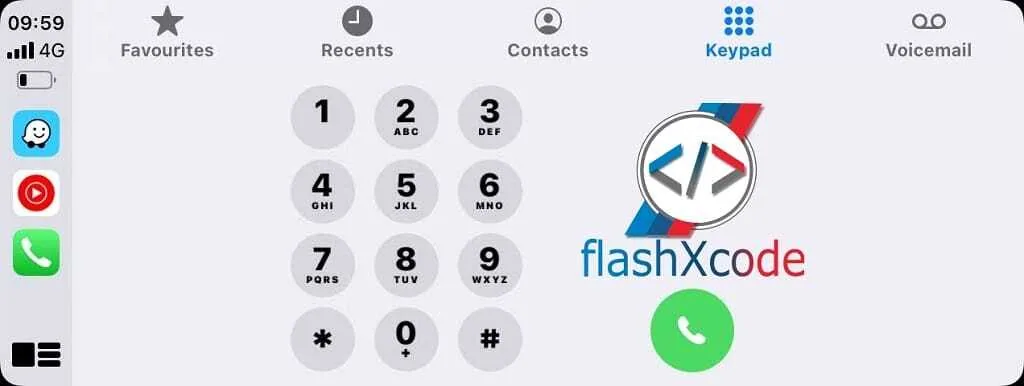
6.3Phone calls