Activate CarPlay arrows on HUD and KOMBI
Install CarPlay navigation arrows on your Head-Up Display and 6WB digital cluster yourself: connect the laptop to the car, enter your code in the Wayglass Installer and let it run. Allow about 5 minutes.
Before you start
- Your FlashXCode access code (WG-XXXXX-XXXXX)
- Wireless Apple CarPlay already activated and working
- An original Head-Up Display and/or a 6WB digital instrument cluster
- An ENET cable
- A Windows laptop with an internet connection
- The Wayglass Installer
-
Download the installer
Download the Wayglass Installer and install it on your Windows laptop.
Download Wayglass Installer -
Connect the ENET cable
Plug the ENET cable into the car’s OBD port and into your laptop. If your laptop has no Ethernet port, use a USB-to-Ethernet adapter.
-
Connect the laptop to the internet
Use Wi-Fi or a mobile hotspot. The ENET cable stays plugged in at the same time.
-
Turn the ignition on
Put the ignition on or start the engine, and keep it on for the whole procedure.
-
Open the installer and enter your code
Open the Wayglass Installer and type or paste your access code. Before you continue, check that both indicators are green: “Unit Connected” at the top right and “Online Car Connected” at the top left.
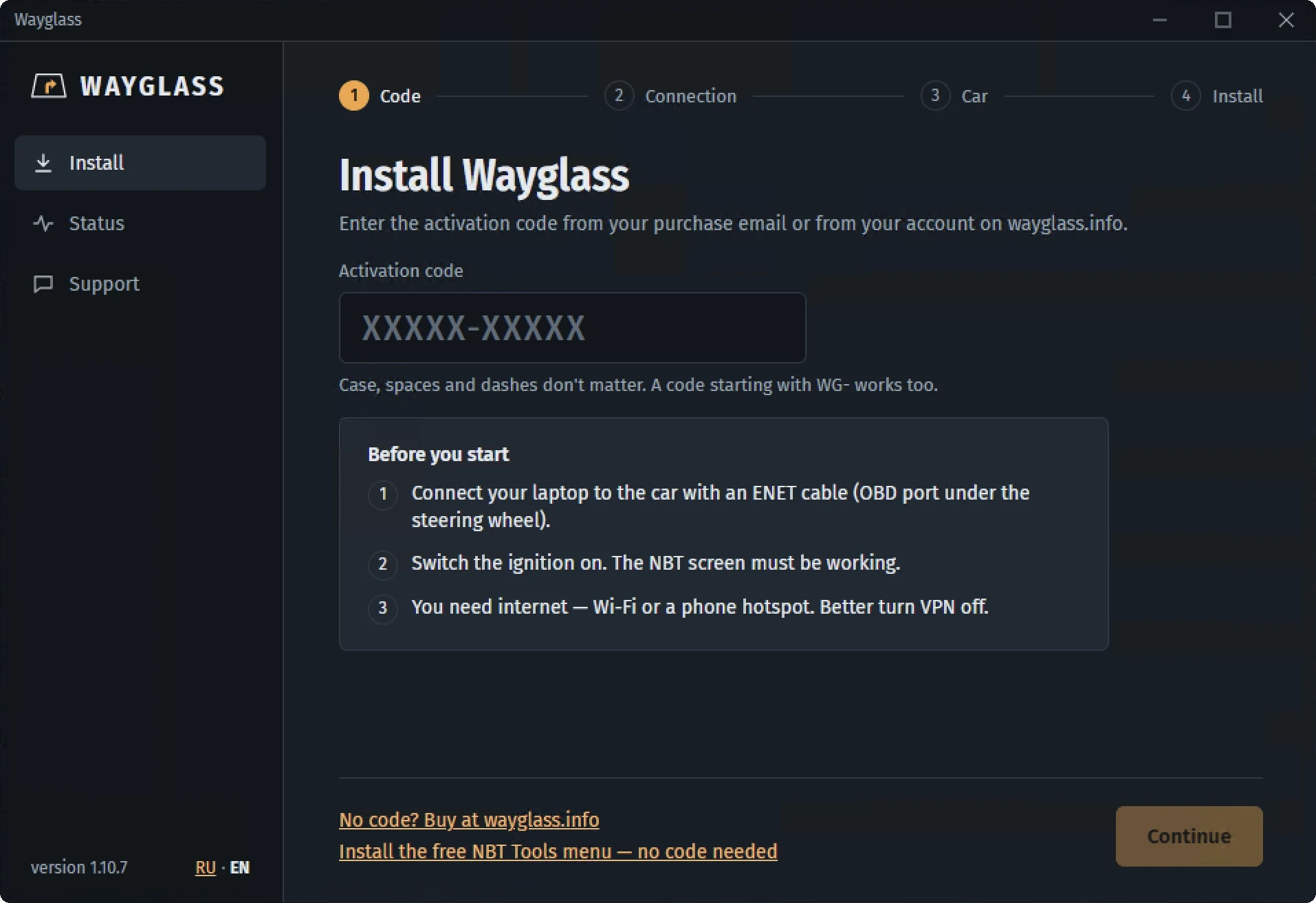
Wayglass Installer: enter your activation code -
Run the code
Click Run code, then sit back. The installer reads your unit’s software version first and changes nothing if it isn’t compatible. Don’t turn off the ignition or unplug the cable until it’s finished.
-
Start a route
Start the car, connect your iPhone to CarPlay and start a route in your navigation app. The arrows appear on the HUD, between the gauges of the cluster, or both.
-
Choose where the arrows appear
Open the dedicated entry under My Vehicle in the iDrive menu to change the settings. You don’t need the laptop for this.
- Where to show: HUD, instrument cluster, both, or as in BMW settings
- Show lanes: on or off
- Lane style: in perspective with arrows, or columns with arrows
- Manoeuvre text instead of the street name
Frequently asked questions
My software version is not supported
Nothing was changed on the unit. Send us your VIN and we’ll check it for you, as new versions are added.
The installation was interrupted
Run the installer again: it finishes the installation or restores the original state.
I don’t see any arrows
Check that wireless CarPlay is connected and a route is running. While BMW navigation is guiding, it has priority on the HUD and cluster. CarPlay guidance comes back when that route ends.
I don’t see lane guidance
Lanes only appear if the navigation app sends them. Yandex Navigator does; Apple Maps does not.
How do I remove it?
Use the remove command in the installer. The unit goes back to factory behaviour. Remove it before a dealer software update, then check compatibility and reinstall.