Activate Wired Android Auto
Activate wired (USB) Android Auto on your NBT EVO head unit yourself. Allow about 5 minutes, with the vehicle stationary.
Before you start
- A Windows PC — Windows 11 is recommended
- An ENET cable (Ethernet ↔ OBD) connected between the car and the PC
- Ignition on, engine off
- Battery charged (or a charger connected) — recommended, not mandatory. You can do it with just the ignition on
- A stable internet connection on the PC
- SSH access to the unit must be open
- An NBTevo unit with version Y
-
Enter your licence key and validate it
Type the key you received with your purchase and click Validate my licence. Only NBT EVO systems running version Y are supported.
Download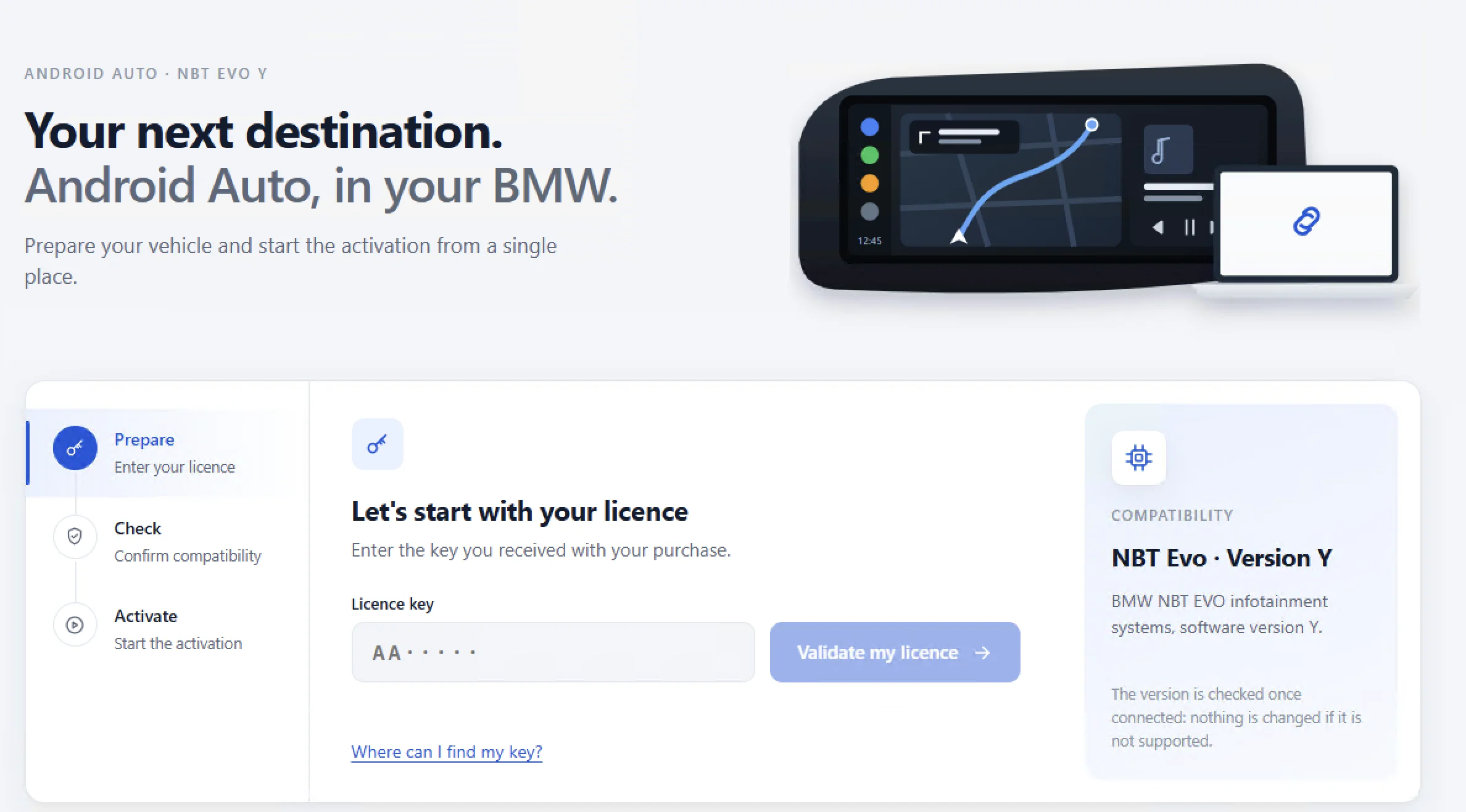
Enter your licence key -
Tick the checks and accept the terms
Confirm the compatibility checks and accept the terms. The software version is checked once connected: nothing is changed if it is not supported.
-
Start the activation
Start the activation and wait until it ends, without switching off the ignition.
-
Restart the infotainment and connect your phone
Hold the power/volume button for about 30 seconds, until the screen turns off and on again. Then connect your Android phone over USB and unlock it.
Frequently asked questions
The car does not respond
Check that the ENET cable is firmly connected at both ends and that the ignition is on, wait one minute and try again. Your key is not used until the activation has started.
My vehicle is reported as not compatible
Only NBT EVO systems running version Y are supported. Nothing was changed on the car and your key remains valid.
My key is rejected
Check what you typed (7 characters, starting with AA). A key already used on another vehicle, disabled or expired is rejected: contact support.
I need to reinstall
Start the activation again with the same key on the same vehicle: it remains valid for it.