
Activate Android Auto with the FlashXCode WG Installer
Install Android Auto on your NBT EVO head unit yourself: connect the laptop to the car, enter your code in the FlashXCode WG Installer and let it run.
Before you start
- Your FlashXCode access code (WG-XXXXX-XXXXX)
- An ENET cable
- A Windows laptop with an internet connection
- The FlashXCode WG Installer
-
Turn the ignition on
Put the ignition on or start the engine, and keep it on for the whole procedure.
-
Connect the ENET cable
Plug the ENET cable into the car’s OBD port and into your laptop.
-
Connect the laptop to the internet
Use Wi-Fi or a mobile hotspot. The ENET cable stays plugged in at the same time.
-
Open the installer and enter your code
Open the FlashXCode WG Installer and type or paste your access code. Before you continue, check that both indicators are green: “Unit Connected” at the top right and “Online Car Connected” at the top left.
Download FlashXCode WG Installer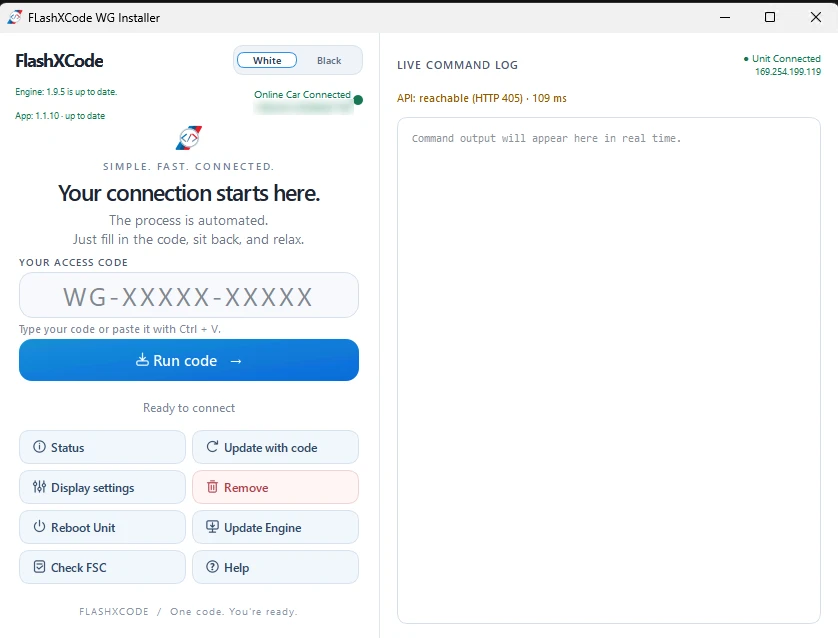
4.1Unit Connected and Online Car Connected are green: you’re ready 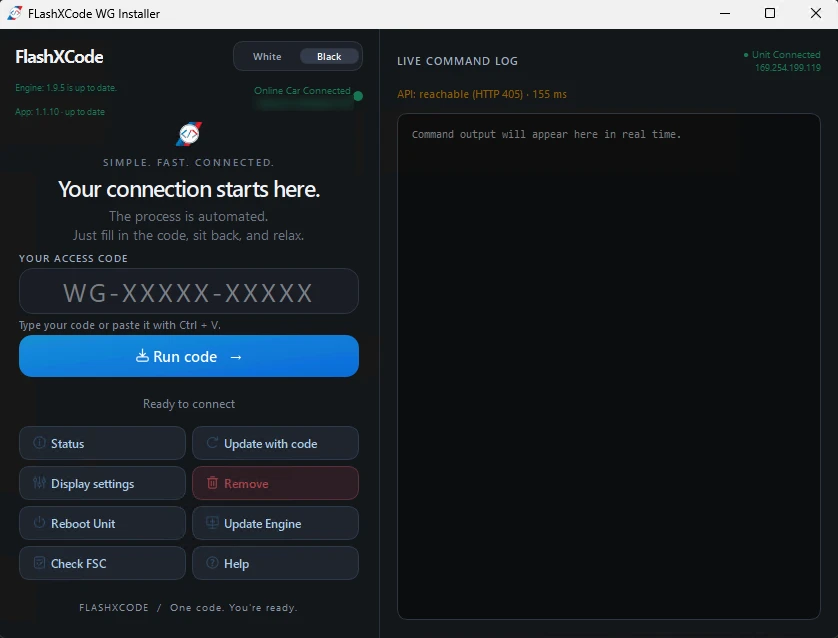
4.2The same screen in the dark theme -
Run the code
Click Run code, then sit back. The installer does the rest and shows its progress in the live command log. Don’t turn off the ignition or unplug the cable until it’s finished.